There is an easier way to import your Exam View question sets directly to CPS so you do not have to hand key in the questions or use Verbal questions. How you may ask?
First you will have to have the Exam View CD in the computer or the content loaded to a location on the system where you have access to it. After you have opened your CPS software make sure that you are on the Prepare Tab --> Lesson & Assessments section.

Now Make sure that your database is showing on the left hand column of the screen and select it
 by left clicking on it one time. Once you have done that click New button and Select Lesson and create a new Lesson with the name of the Exam View question set or something that is closely related to it so that you do not have to search for it. After you have created your new lesson then it will show up under your database in the left hand column.
 Right click on the new Lesson and choose Add File(s).. from the list to open the search dialog box where you will now search for the location of the test banks you want to upload. Before you can see the questions on the right hand side of the screen you will see a small dialog box pop up that asks you the Location Details of the question set. You have to answer this two times by selecting North Carolina form the drop down list. Once this is done you will see the test bank questions show up on the right side of the screen. **The questions cannot be modified from their original format.**
Now that the questions have been uploaded you now click on the Engage Tab --> Lesson & Assessments and choose the appropriate question set you want to deliver and engage it for the students to begin responding. **Remember for a Student Paced test you must select Assessment Setup and choose Student Paced before you click on the Engage button.**
Images provided by:
eInstruction CPS version 6.51
eInstruction CPS version 6.51


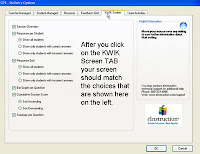 After you have all the settings correct you engage a question session normally then on the