As an Art teacher are you always wondering how you can help your students to understand the feeling behind a Chagall, Rembrandt or Picasso painting? Do you struggle to try and show line and depth using a 2D photograph from a textbook?
Well it just so happens that Google has brought you a new way to look at Art with Art Project. This website is the culmination of a collaborative effort of 17 museums from around the world to share their artwork for all to see. What I think is interesting about the site is that when you are looking at the art you see a small compass tool like object along the left side of the screen that allows you to zoom in and out as well as to pan and move. It is very similar to what Google offers you in its Street View add on for Google Maps. I don't know about you but I immediately started thinking about Virtual Field Trips when I saw this site.
When you land on the sites homepage you choose from the museums listed(17), once you make your selection the website background will change to a theme inspired by the chosen museum. You will then see to the right of the list a work of art and an explore museum option.
When you click on the View Artwork the work comes full screen where you can interact with it either by using the zoom in/out tool in the top left or bottom right of the screen. Once you have zoomed in you can pan around the picture by clicking and dragging around. There is a small photo shot of the artwork in the bottom left that shows you where you are on the image when you are using the zoom in feature.
Along what I would call the toolbar there are some additional options to choose from. One is an informational link at the far right of the page displays information about the work of art. On the left side of the toolbar you can choose a new location as well as another piece of art from the drop down menus.
If you had chosen the Explore Museum option you are taken to a similar screen which displays a point of view look of the museum. As you move the mouse onto the screen you will see arrows that allow you to walk around and move in on a specific area of the page. Just as you would if you were using Street View on Google Maps. When you walk around the room looking at the artwork the ones with a plus(+) sign will allow you to view/inspect them more.
This tool is a great opportunity for teachers to give their students a completely different view of art without having to look through a book or travel to a museum. The Virtual Field trip idea is what hooked me. Art in the virtual world and in a computer lab situation could allow students to walk through the National Gallery in London or the The State Tretyakov Gallery in Moscow. Places that many students may never have an opportunity to visit.
The website also offers you a Learn More button that gives you some general information about the site and how to use it. You are provided with an FAQ section as well as the list of all participating museums. And if that was not enough Google has provided you with a link to the Art Project You Tube channel so that you can view some of the created videos that go along with this site.
Tuesday, February 1, 2011

Tuesday, January 11, 2011
My first GoAnimate Cartoon
I recently signed up for a GoAnimate 4 Schools account to see how the system works. What features it has and what it could offer me as an Instructional Technologist.
I am very surprised at how easy it was to get into the creating aspect of the website. After I enrolled for my Teacher Plus account I received my login info after a couple of days. The Teacher Plus account provides for both the teacher and the students in your class a Private controlled area for students to put their work and some Social Networking features to help them. You can upload your own sound, music and images to the site to import into your animation. The website also allows you to record sound or rather voice record for your animation creation. Here is the full Features list for you to look at. GoAnimate 4 Schools also has a Forums page for you to ask and get answers to questions you or your students may be having when they are using the site.
The Lesson Gallery offers 6 different category headings that you can put your Animations in. They are Technology, Languages, Literature, Science, History and Math which you get to choose from when you are Save as a Published completed project.
Now how easy is it to create an animated scene with GoAnimate? It is very easy, here is a breakdown of the panel page. When you go to either edit a current project or create a new one the GoAnimate screen shows with three distinct parts to it. You have a Storyboard area which runs along the bottom of the page where the individual scenes are stored while you are creating. There is the screen editing area where you can set up the animations for objects and characters you have placed in the scenes. Then lastly on the left side of the screen is what I would call the tab viewer. There are six tabs to assist you in creating your animation.
So I could not give a proper review unless I went through and created my own animation. It was very easy, I selected my characters and used the canned voice tracks. Oh did I forget to tell you the system uses Text-to-Speech software to translate up to 120 characters that you type into voice. And I also used some other special animation features to have the characters interact on the screen. All in all it took about 45 min from start to finish to put together about a minutes worth of video. And the nice thing about go animate is that you can pick out the web address of your video or you can embed it directly into your webpage or blog page using the provided code.
I am very surprised at how easy it was to get into the creating aspect of the website. After I enrolled for my Teacher Plus account I received my login info after a couple of days. The Teacher Plus account provides for both the teacher and the students in your class a Private controlled area for students to put their work and some Social Networking features to help them. You can upload your own sound, music and images to the site to import into your animation. The website also allows you to record sound or rather voice record for your animation creation. Here is the full Features list for you to look at. GoAnimate 4 Schools also has a Forums page for you to ask and get answers to questions you or your students may be having when they are using the site.
The Lesson Gallery offers 6 different category headings that you can put your Animations in. They are Technology, Languages, Literature, Science, History and Math which you get to choose from when you are Save as a Published completed project.
Now how easy is it to create an animated scene with GoAnimate? It is very easy, here is a breakdown of the panel page. When you go to either edit a current project or create a new one the GoAnimate screen shows with three distinct parts to it. You have a Storyboard area which runs along the bottom of the page where the individual scenes are stored while you are creating. There is the screen editing area where you can set up the animations for objects and characters you have placed in the scenes. Then lastly on the left side of the screen is what I would call the tab viewer. There are six tabs to assist you in creating your animation.
- Character Tab - Choose from the preloaded characters or create your own
- Thought Tab - Series of thought and speaking bubbles
- Background Tab - Choose form the preloaded backgrounds
- Object Tab - Choose from the preloaded objects
- Music Tab - Choose from the preloaded music, sound fx or record your own voice
- Effects (FX) Tab - Choose from their pre-scripted effects.
So I could not give a proper review unless I went through and created my own animation. It was very easy, I selected my characters and used the canned voice tracks. Oh did I forget to tell you the system uses Text-to-Speech software to translate up to 120 characters that you type into voice. And I also used some other special animation features to have the characters interact on the screen. All in all it took about 45 min from start to finish to put together about a minutes worth of video. And the nice thing about go animate is that you can pick out the web address of your video or you can embed it directly into your webpage or blog page using the provided code.
So here is my very first GoAnimate cartoon video on
How to Insert Media into a Promethean Flipchart
How to Insert Media into a Promethean Flipchart
GoAnimate4Schools.com: Inserting Media by EHerreid
Like it? Create your own at GoAnimate4Schools. It's free and fun!
video created by: eherreid
Monday, January 3, 2011
Interactive Social Studies for PreK-5
One thing that I have heard from Elementary teachers, while I have been training on Interactive Whiteboards, is that there are not a lot of activities out there for Social Studies that will utilize the IWB to its abilities. They are looking for quick activities that they can use to either start or reinforce a lesson with.
PBS offers a lot of online interactive activities to aid teachers in getting their students engaged in learning.
Here is a sampling for PreK-2 Teachers
1. Build a Neighborhood - Allows students to create their own neighborhood
2. Coast to Coast - Test students knowledge of Geography in the US
3. Connect the States - A matching game that helps students learn flags, animals, foods and other facts about states.
4. Connect the World - A matching game that helps students learn flags, animals, foods and other facts about other countries.
5. On the Job - A matching game where you pick the best tool that goes with the worker.
Here is a sampling for 3-5 Teachers
1. Sticker Race - Analyze the bumper stickers from around the US
2. Mapping the West - Discover how the land west of the Mississippi was divided prior to the Louisiana Purchase.
3. Search for the Lost Cave People: Be an Archaeologist - Examine why clay is a good material for making containers.
4. Secrets of Lost Empires II: Construct an Aqueduct - Determine where to place the Aqueduct in your Roman City.
5. Be your Own Boss - Learn how good decision making can help you run a successful business.
This is just a sampling of some of the Interactive Activities that PBS offers that you could use on your Interactive Whiteboard. Check out PBS Teachers for more information and activities.
PBS offers a lot of online interactive activities to aid teachers in getting their students engaged in learning.
Here is a sampling for PreK-2 Teachers
1. Build a Neighborhood - Allows students to create their own neighborhood
2. Coast to Coast - Test students knowledge of Geography in the US
3. Connect the States - A matching game that helps students learn flags, animals, foods and other facts about states.
4. Connect the World - A matching game that helps students learn flags, animals, foods and other facts about other countries.
5. On the Job - A matching game where you pick the best tool that goes with the worker.
Here is a sampling for 3-5 Teachers
1. Sticker Race - Analyze the bumper stickers from around the US
2. Mapping the West - Discover how the land west of the Mississippi was divided prior to the Louisiana Purchase.
3. Search for the Lost Cave People: Be an Archaeologist - Examine why clay is a good material for making containers.
4. Secrets of Lost Empires II: Construct an Aqueduct - Determine where to place the Aqueduct in your Roman City.
5. Be your Own Boss - Learn how good decision making can help you run a successful business.
This is just a sampling of some of the Interactive Activities that PBS offers that you could use on your Interactive Whiteboard. Check out PBS Teachers for more information and activities.
The More You Know... ActivInspire
Did you know that there are a number of combination keys in ActivInspire that offer you easy access to features that you may not be aware of. The one thing that makes ActivInspire more user friendly than before is its ease of use. The software has a lot of multi-use buttons and quick access options built in to make the tools easier to find.
Take for instance if you want to see the ActivInspire Dashboard and it is no longer showing on the screen because you closed it out. Well you could go to the View Menu because that is what you want to do, "View" the Dashboard or you could press the F11 Key. It is what I would call built in redundancy, the software offers you many different paths to get to the same end result. How about this example, for some reason in the middle of a Lesson the board seems to not want to respond to your stylus touch and you need to go to the next flipchart page. Since your board is not responding to you what do you do? Well you would go to your computer keyboard and press the Page Down Button that will advance the flipchart one page. Or maybe in the same situation you want to Copy and Paste an item from one flipchart page to another. You would be at your keyboard to press the CTRL + C (to copy) Page Down (to advance a page) then CTRL + V (to paste).

Take for instance if you want to see the ActivInspire Dashboard and it is no longer showing on the screen because you closed it out. Well you could go to the View Menu because that is what you want to do, "View" the Dashboard or you could press the F11 Key. It is what I would call built in redundancy, the software offers you many different paths to get to the same end result. How about this example, for some reason in the middle of a Lesson the board seems to not want to respond to your stylus touch and you need to go to the next flipchart page. Since your board is not responding to you what do you do? Well you would go to your computer keyboard and press the Page Down Button that will advance the flipchart one page. Or maybe in the same situation you want to Copy and Paste an item from one flipchart page to another. You would be at your keyboard to press the CTRL + C (to copy) Page Down (to advance a page) then CTRL + V (to paste).
So in order to help out with some of the keyboard commands in ActivInspire, I have created a cheat sheet list of all the Control, Special and Function Key commands that you can print off to have close at hand when you are working, whether you are connected to a board or not, on your Flipcharts. If you click the image it will take you to our Wiki page where you can download the ActivInspire Special Keys pdf as well as take a look at the other information we have to offer.
Wednesday, December 22, 2010
ActivPrimary in the Classroom
If you are using ActivInspire in your PreK - 1 classroom you have another alternative. You can change the look and feel of ActivInspire to benefit your younger students by setting the system to open using ActivPrimary.
To do this you will Select the Configure button from the Dashboard and then put a check in the box on the Right side of the screen that says "Launch next time using the Primary look and feel."
Don't worry I have included this video:
When you open up ActivPrimary you will immediately notice the new look. One thing to keep in mind is that some things are not in the same place as they were in ActivInspire but all the same features are still intact. When you look at your Browser window you will notice that the two icons are missing for your Page and Resource Browser. Don't worry they are now located along the bottom of the floating Toolbar. Now since the features are the same and just the look is different there is no new learning curve with the software. Everything that you could do in ActivInspire you can do in Primary. However, if you need some additional assistance you can check out resources on Promethean Planet and videos from YouTube.
images from ActivInspire and ActivPrimary
video by: eherreid
The 5 Reasons I Use Social Media
1. To share thoughts and ideas with others in my field.
2. Quick answers to questions I have on technology issues
3. Build relationships with my peers in Education
4. Helps me to keep track of resources.
5. Provides me the opportunity to help out others just as much as they help me.
For the past few months now I have been delving more into the realm of Social Media than I had ever before. I have to admit that I was a skeptic and was always worried that whatever I said could come back to haunt me. So I tended to stay away from it, positioned myself to avoid the conversation.
Since participating with colleagues from around the southeast in a conversation regarding the uses of Social Media for both Business and Education, I have let down some barriers. I have since started using Twitter to share my thoughts and ideas as well as to help out others who were looking for answers just like I was. I now have my own Blog and am reading more blogs than I had ever done so before. I think my blog feed now has literally hundreds of blog entries waiting for me to read through on a daily basis and really gets backed up if I am not keeping up with things.
Why the change of heart, what is different now from the way I felt just a few short months ago? I have to credit my peers who are using Social Media effectively whom have helped to guide me along this new journey. I look forward to continuing to use the current products out there as well as researching new ones.
Friday, December 3, 2010
No more Ink from Overheads on Hand
Are you still using your overhead machine? Tired of dealing with cleaning the marker ink off of your hand after school each day? Since I am left handed I had ink all the way up my arm and had to scrub my arm raw every day to get rid of the ink.
Well there is a ray of light at the end of the tunnel "so to speak." If you have a Document Camera in your classroom along with an Interactive White Board or Tablet you can be ink free very soon.
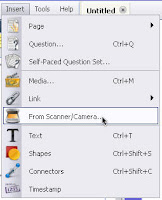 With either Promethean ActivInspire or SmartBoard software you have a toolbar option that allows you to import the image directly from what the Document Camera is seeing and put it into the software and utilize the features of the program to interact and write on top of the displayed image.
Now what does this mean you may be asking? Well you can relegate that overhead to being a coat rack and use your Doc Cams and IWBs to display those old overhead sheets. Yes I am saying to keep all of those great overhead resources that you have used throughout the years just re purpose them and use them in another format.
Place that overhead sheet on top of a blank sheet of paper and then under the doc cam. Open up either the SmartBoard or ActivInspire software and in the toolbar select Inset: Image from Scanner/Camera. You will then click OK on the type of doc cam you are using(comes up as the default). Then look at the screen and there will be a new window that opens with the live image from the doc cam showing. Now click Capture on the window and it will place the image directly into your open Flipchart or Notebook file. Now it is just a matter of picking up a pen from the tray or using your stylus to begin writing on top of the overhead resource without getting any ink your hand.
Well there is a ray of light at the end of the tunnel "so to speak." If you have a Document Camera in your classroom along with an Interactive White Board or Tablet you can be ink free very soon.
 With either Promethean ActivInspire or SmartBoard software you have a toolbar option that allows you to import the image directly from what the Document Camera is seeing and put it into the software and utilize the features of the program to interact and write on top of the displayed image.
Now what does this mean you may be asking? Well you can relegate that overhead to being a coat rack and use your Doc Cams and IWBs to display those old overhead sheets. Yes I am saying to keep all of those great overhead resources that you have used throughout the years just re purpose them and use them in another format.
Place that overhead sheet on top of a blank sheet of paper and then under the doc cam. Open up either the SmartBoard or ActivInspire software and in the toolbar select Inset: Image from Scanner/Camera. You will then click OK on the type of doc cam you are using(comes up as the default). Then look at the screen and there will be a new window that opens with the live image from the doc cam showing. Now click Capture on the window and it will place the image directly into your open Flipchart or Notebook file. Now it is just a matter of picking up a pen from the tray or using your stylus to begin writing on top of the overhead resource without getting any ink your hand.
Subscribe to:
Posts (Atom)