Monday, September 23, 2013

An Inside Look at School News

Your Principal comes to you and asks you to start up a news broadcast at your school.  What do you do?  Where do you start?

Well, it seems like I have been living this dream for a couple of months straight now and want to share some tips and tricks with you on what I have done as I talk with schools.

Now this is just what I have done and by no means is the end all be all of setup processes but maybe you can pick up something along the way.  I will be breaking this up into a couple of blog articles because I can get pretty wordy, and I want you to come back.

So according to this scenario where do you begin? Well, at the beginning of course.

Where do you start? Let’s talk about what you need to have to get things going.  What kind of equipment do you need to have to do a newscast?

Actually this is the easiest part of the whole process.

Really, you might be thinking, yes it is.

So what should you have? Do you need to buy anything?

Whoa, hold on now let’s just take a look at what you have right in front of you first before we start trying to go through that long buying process that every school system has.

(At the end of the blog I will put in some other additional things that you could use to create a newsroom.)

Equipment:

A camera that’s it, that’s all, nothing else.

I am not talking about a Digital or Polaroid camera; I am referring to a video camera.  What type of video camera do you need?  That’s easy depending on what type of computer you have it, might be right in front of you.

Yes I am talking about a Web Camera; you know the one that is built into your laptop or one you may have purchased to go with your desktop computer.  I am of the firm belief of using whatever you have access to before buying anything.

So you have your webcam what else?  You do need to make sure that your webcam does have a built in microphone that is important.  If it does not then you will need to have access to a microphone that can plug into a computer.  I will explain a little more about sound in just a moment.  OK you have the video camera w/a microphone what’s next?

Now you need a space.

Location:

You want to make sure that you have an area set aside to be your newscast location.  It can be anyplace you have available in the school. A small area set aside in a classroom, Media Center or one of those wonderful Cafegymnatoriums.  (It took me a couple of years to be able to pronounce the word.)

The ideal location would be one that is separate from high traffic areas like a dedicated room.

I know that this is not common for most schools, so use what is available to you.

Now that you have figured out what space you are going to use what’s next?  My suggestion would be some chairs and maybe a table, a table is not always necessary though.  As long as you have a comfortable seat for your students to sit that is all that is really needed.

In this area I would also try to eliminate, as much as you can, any additional noises by using what is available as a sound break.  You could use partition walls, book shelves, mobile coat closets, desks, carpet squares, rugs or anything else that could create a noise barrier.

Broadcasting:

Now that we have our equipment and a location to broadcast from how do you get the news out to your entire school?  There are many ways to do this; I will outline a few of them that have been successful in our schools:

  • A quick and easy way is to just record the newscast with the students and then post the video up for the school to see at a later time.  To do this you will need to have a computer with some sort of recording software on it.  If you are using a PC you could use the built in Windows Live Movie Maker, or if you have a Mac you may have iMovie which you can use.  Both software applications have the ability to record from a video camera and then each have some tools for editing and saving the video to your computer to post for all of the students and teachers to see.
  • A second way is to use an online resource to show the newscast live.  A website that allows you to do this is Ustream.TV, the site allows you to live stream video and audio over the internet as long as you have a network connection from the computer your webcam is attached to.  You will have to set up an account on the website for streaming but it is free at least the last time I used the site it was.  You will set up the station to watch, make sure that the camera is connected and visible by the website.  Then you will get a link that you will send out to the school for classrooms to click on and watch.

Ok I mentioned before about sharing some other ideas for Equipment, Location and Broadcasting.  These are the beyond the basics of what is listed above:

Equipment:

  • Video cameras:  Camcorders, singular or multiple to use with a video changer for multiple camera angles.
  • Sound: Sound boards to allow for multiple microphones whether wired or wireless.

Location:

  • Room:  A studio room that is already sound proof and wired for the equipment.
  • Broadcasting:  Closed Circuit Systems can be used if available or a web-based broadcasting system.

This is just a small start to get a newscast going in your school.  Over the next couple of weeks I will talk more about the behind the scenes things that need to be done with student expectations and some interesting tools and techniques you can use to make your newscasts more interactive and fun so stay tuned for more.

Wednesday, April 24, 2013

The Good, Bad and Ugly on Ladibug 2.0 Software

2.0 or not 2.0 that will be the question that is answered hopefully at the end of this Blog post.

Recently the Lumens company has updated its software for its famous Ladibug brand document cameras (Doc Cam).  When Lumens decided to update from the earlier Queue to Ladibug software it was a huge transition for users to get accustomed to, but was also leaps ahead in the features that it offered.  Now recently, the Ladibug software has gone through another transition as it has upgraded from version 1.1.. to version 2.0.3.

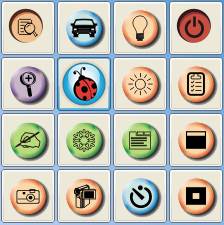
Let's take a look at the changes and talk about the Good things.  One of the obvious changes that you will notice is that when you activate the software and hover over the Ladibug Icon you will only see a 4x4 grid.  If you remember in the earlier version you hovered and saw a 3x3 grid and then had to click the Advanced button to see the 4x4 grid.

On the 4x4 grid there have been a couple of new feature icons that have been added for you to use along with the ones that you have become accustomed to.

One of them is the Mask Mode, which is similar in look to a cover shade over the information. If you remember putting a sheet of paper over the overhead machines to block certain information you were sharing this will be the same, just through the software.

The other is the Spotlight Mode, which allows you to focus in on an area of the screen while blocking out the rest of the viewing area.


The biggest change that you will notice when you turn on the software that is completely different on version 2.0.3 is in the viewer window when you click the Display Live Image button.

You will now see something extra, the Thumbnail Viewer, which is attached to the left side of the viewer window that offers some additional available options that you have not had the ability to do before.


Any images that you take with the Camera Button will display in the thumbnail viewer for you to use.  To display one of the images, click the Thumbnail you want to use.  To go back to the live image hover over the Ladibug Icon and click the Display Live Images button again.

Some of the other features on the toolbar are:

  • You can Save the Image anywhere on your computer.  
  • Open a Directory of Images from your computer, CD-rom, Thumb Drive or other removable storage device to display inside of the Ladibug software. 
  • You can Delete items in the viewer that you do not want.  
  • You can also email images directly from the Ladibug software 

Now you know whenever there is good I always seem to find something bad to go along with it.  Well the only thing that I could find can count as both bad and ugly at the same time.  The Delete feature is the culprit that has caught my attention.  I said earlier that you can open a Directory of images and bring them into the document camera and use them in the software.  Well you will need to make a copy of all of the images first before you open them in the Ladibug software.  What happens is that the software does NOT create a duplicate of the image, it attaches to the original.  Why is that bad you may be asking?  Well it comes in when you want to Delete an image you no longer want to use.  If you Delete an image that you have pulled from a Directory.  It is permanently deleted from the original location.  Yes gone for good, I learned the hard way believe me, I lost an image that I did not have a duplicate of.  

So all in all the software update is great and so much more user friendly that its predecessor with the exception of the Delete feature.  I would have to challenge Lumens to work on fixing the system so that it will duplicate the images when you open a Directory of photos to use in the software. 

Thursday, January 17, 2013

Restaurant Dining meet Technology

Well you know that technology has made an impact when your dining experience has been enhanced through the use of technology.

How many times have you been to a restaurant in a group when the conversation dies out?  Have you been out with your kids and they are fidgeting around at the table and don;t know what to do with them?  Most people pull out their cell phones and will hop on the internet, check voice mail or texts or go to their favorite social media outlet as the conversation dies or to keep your children's attention.

Well Applebee's seems to have hit the mark on giving you an interactive dining experience with their "Ziosk" table system.  You have the ability to order your food, pay your bill and even play video games.  Yes I said play video games.  For a nominal fee you can play video games while you are waiting for your order to be brought to your table.  Great idea for those nights when you are dealing with both hungry and fidgety kids. 

The Ziosk display unit looks to be a 7" tablet that has been mounted in a sturdy base with a card reader so you can pay your bill by gift or credit card.  Seems to run on a standard OS with a simplified POS system running in it for you to order and pay your bill.  When I paid my bill I was given the option of getting a printed receipt or having one emailed to me.  I chose to have it emailed to me, I don't know about you but I hate walking out of a restaurant with three or four paper receipts.  Within a minute of submitting the payment I received the email with the receipt.  Now there is a catch you do have to offer up your email address to the Applebee's Ziosk display but as of yet I have not received any junk email from them.

So if you are looking for a fun, and interactive, dining experience head on over to the new and improved connected Applebee's nearest you to try out their new menu items and the the on Ziosk table display.

Friday, October 26, 2012

Making the Elections Relavent

As this year's Elections draw closer and closer do your students really know what is going on?

With all of the ads on TV, radio and the internet it may be difficult for your students to see the big picture as you explain the election process to them.

Although this can be discussed in all grade levels it is more prevalent right now for students that are in the eighth grade. How might you ask?

Students in the eighth grade are currently learning about the Revolutionary War and the events that happened immediately afterwards. Those events helped to lead us to our first Presidential election. Again you may be asking why is this an important event in the lives of these students. The answer is simple, during the next elections cycle they will be High School Seniors and may have the opportunity to vote. So it is important for them to understand the process and how they can make a difference if they choose to vote, remembering to tell them that it is their choice.

Here are some resources that can help make the difference in how your students perceive the Elections and how they can get involved and make it relevant to their lives.

  • Have your students create Political Cartoons using this Arts Edge Lesson that brings in a cross curricular component to the normal Social Studies curriculum.  As well Arts Edge has a great Lesson on the Election Process to help enhance your instruction on how the process works.
  •  You can use Read Write Think as a launch point to provide a number of resources on the Election Cycle and ways to get your students involved.  Some of these resources discuss using Avatars to create political cartoon skits.
  • You can use this Themed Resource page from Smithsonian's History Explorer to give your students some more background on the election process.  See how Mass Media plays a role in the election process with this resource from Smithsonian. 
  • Try all of these resources that Thinkfinity has gathered together for you regarding the election process.
  • Here are a lot of Election Lesson plans and activities from EDSITEment that go along with the Social Studies curriculum.
So even though I am talking to all you eighth grade teachers out there, anyone can utilize these resources to help make the elections relevant to your students by having them become involved through some of these activities.

This will help drive home the importance of the subject material and even help them to understand the current events that are going on in the world around them.


photo credit: The Suss-Man (Mike) via photopin cc

Thursday, July 5, 2012

Starting the Day with a Wonder

Let me tell you a little about how I like to find fun things for students to do in class to start the day off right.  I think that the old saying is that Breakfast is the most important meal of the day and that students need it to start the day off in a good way.  Well I think that we also need to start their classroom day off right as well.  Something that feeds their minds when they get to school just as much as breakfast does before school.

About a year and a half ago, give or take a month, I was introduced to Wonderopolis by a co-worker as a site that offered up something different.  What they offered was short video clips that talked about some things that most people just wondered about.  I learned about the site in January of 2011 but the site had been up since October with its first wonder, Why are Flamingo Pink? That launched on Oct 4, 2010.  Wonderopolis is… “a program brought to life by the National Center for Family Literacy, engages and inspires families in the pursuit of education and learning together.” It also a product of Verizon Thinkfinity which… “offer comprehensive teaching and learning resources created by our content partners – the most respected organizations in each academic subject and literacy.

In January of 2011 I started talking to teachers about how to use Wonderopolis in the classroom and how it could benefit the students as the day begins.  I talked to the teachers and showed them the website and their eyes were wide open by all of the information.  Many times I would show the site to them and they immediately would start talking about how to connect what was on the site with what they were working on in class at the time.  As this was going on I would show them how they could search through all of the Wonders either with a keyword search or through the category options along the left side of the page.  The teachers were amazed at how much information was available to them as they looked at each of the wonders.  There is a description of the wonder, some additional questions, did you know section, some vocabulary words and even some fun project ideas to go along with the wonder of the day.  

I really enjoy the site and will continue to share it with as many teachers as I talk with.  The site offers so many additional resources associated with the wonders that even though they are meant to be short lesson starters, it is more often than not they can be turned into full blown lesson designed in conjunction with the curriculum.  

With all that being said, go to Wonderopolis and see for yourself.  I can be sure that there is something on the site which will add to your daily instruction.  Who knows you may even explore beyond the site to some of the other resources available from Verizon Thinkfinity and extend the learning even further.

Wednesday, May 16, 2012

Learning Through the Summer


Now that we are closing in on the end of the school year the big question is how to extend your students learning throughout the summer.  Do you give the students reading lists that you hope they will do?  Do you want them to sit in front of a computer all summer?  Do we have to follow the norm like ducklings behind their mother?  Now don't misunderstand me I am open for online learning, to an extent, but it needs to be done in moderation sometimes where activity can be inserted into the equation.  I know that growing up I did not have all the things to distract me as students do today.  My mother would send my brothers and I out in the morning with a hope and a prayer that we would not get into too much trouble.  Oh, and would come home sometime during the day to eat or at least be home for dinner.  That was my life, but today's students have so much more to occupy their time than just playing in the dirt or running around with the neighborhood kids or even just sitting around in the shade when it gets too hot out to keep running around.  I was fortunate enough that I had a parent at home and grandparents nearby to help keep an eye on us.  That may not be the case today, so what do you do to help your child(ren) continue to learn throughout the summer while making it fun and interesting.

What about some of these activities to help keep the learning going.

The Children's Museum of Winston-Salem Summer Camps
The Northwest NC YMCA Summer Camps
Mad Science Summer Camps
SciWorks Summer Camps
Summer Camp Programs at Creative Palooza
YMCA Camp Hanes Summer Programs

Don't forget about these places in or near Winston-Salem as well

Reynolda House Museum of Art
Reynolda Gardens
The Gardens at Old Salem
MESDA - The Museum of Early Southern Decorative Arts
The Children's Theatre of Winston-Salem
TangleWood Park and Gardens
The Asheboro Zoo
Historic Bethabara Park

Now these may not sound as interesting or glamorous as playing video games, Facebook, or shopping at the mall but who knows your child(ren) just might surprise you and thank you for taking them.  Learning should never end when you leave the classroom for the summer.  Maybe with a little bit of coaxing you can help your child(ren) to enjoy some non-digital means of learning that can help them to become life-long learners.


photo credit: pedrosimoes7 via photo pin cc

Thursday, May 3, 2012

Making the Most of Virtual Field Trips

Have you ever asked your students if they could go anywhere in the world where would that be?  Are you worried about the answers that you might get, don't?  With the budget issues we are always looking for alternative ways students can get an understanding of not only their immediate surroundings but what it is like around the world.  Yes we study World Cultures, US History, Ancient Civilizations etc., but most of the time that is being taught from print materials.  How can we as teachers make a difference in student learning so that it is more engaging and fun for them.  After you ask the students the places that they would like to go around the world and at home, take those choices and start creating Virtual Field Trips(VFT) of them.  If some of the choices closely relate to your current curriculum use them first and save the others for a quick filler activity. You have heard about VFT's for years so you may be wondering what else can be done to make them more engaging for students to get the most out of the activities.  You may already be using web quests so your students can gather information about the areas they want to visit.  So what else can you do?  Here are some quick little changes to what you are already doing that you can use with the students to get them more involved in the VFT.

The first thing that some people think of when it comes to VFT's is the use of Google Earth, an interactive software, that allows you to "..fly around the Earth to see cities, places, businesses, different terrains, images and 3D models."   Some may just use Google Maps to travel from place to place where you can switch between a Map and Satellite view.  You now also have an option to use a Google Earth plugin which mimics the stand alone program through the Google Maps website.  Others will use Web Browser searching for students to participate in VFT's.  Is this enough though to keep students engaged?   What else are you having your students doing while they are traveling?  So how do you takes things one step further.

Have your students create a video tour of their VFT and save it as a project they can add to their student portfolio.  If you are not familiar with these features in Google Earth along the top toolbar are a few things that will allow you to accomplish this.  You have the Placemark button which allow you to put a Pin at a location which then offers you the ability to add a description, images and web links.  Then after the students have placed a number of Pins in their location they can use the Add a Path button to create a path through their location.  Then they can use the Record a Tour button to create a video of the locations that they have visited.  If the Historical Images button is available they can even go back in time during their video tour to show an area through history as it has developed over time.

In Google Maps I recently discussed, in "A New Twist on Google Maps," how you can create your own custom maps and then share them with your students so they can collaborate, add information and update them at any time.  You as the teacher can also share links to the map and even embed it into a website, blog or wiki for your students to share and access.  So this would allow your students to keep a running log of all the VFT that they have gone on during a school year with all of their research stored in the map.

Another fun thing you can do in the planning process for your VFT is as you are gathering the location data you can put it into a spread sheet and then import that into a website called Batch-Geo.  This website as discussed in, Quick & Easy Mapping Made Easy, will take the spread sheet data and create an interactive map from it.  This can provide your students with a visual representation of all the locations they can choose from for their Virtual Field Trip.

Lastly, if you really want to get fancy with your VFT you can have your students create short videos about the location they are working on.  You can create green screen videos of your students flying over to the location and then stand and give a quick introduction about the place all the while in the background people see them flying and then pictures.  The students could even do mock interviews with people on the street, athletes and leaders from the area you are visiting.

Here is another blog article about Virtual Field Trips from @dbates479
This blog, Internet Explorers: Virtual Field Trips Are More Than Just Money Savers from Kara Platoni on edutopia shares even more.

Just a few things there that can help keep your students engaged.  Now as always I invite you to comment about other ways you are using Virtual Field Trips in your classroom below.